Microbit Intro, with Screenshots
This is a quick tour of the webpage that programs the microbit https://Makecode.microbit.org (chrome browser only). It is not the fastest programming tool, but it is the fastest to get started. Plug in the USB cable and you get power, programming, and data output in one!
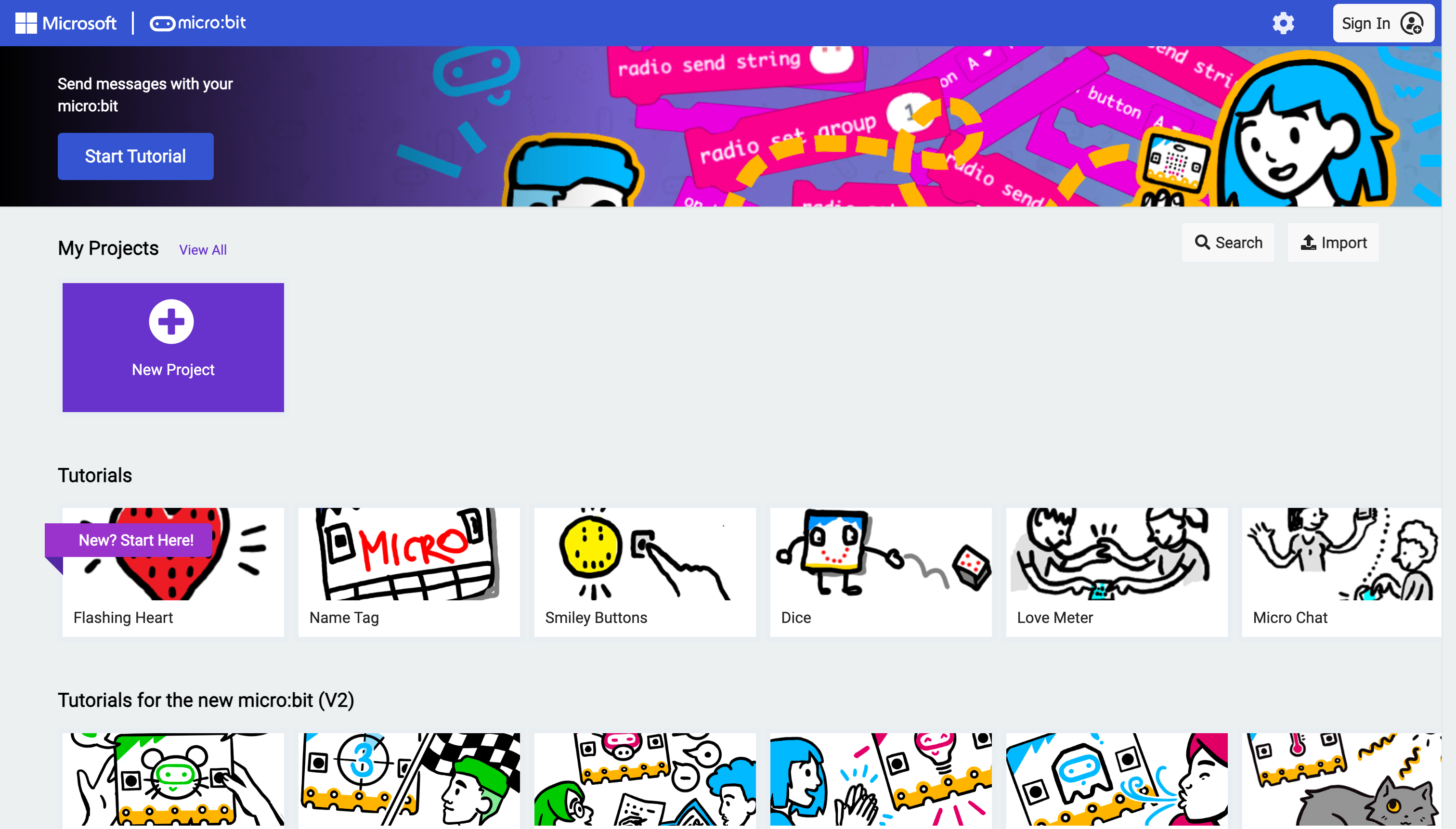 The Makecode home page. Start a new project, reopen one from My Projects, or launch a tutorial that teaches one specific skill.
Only the top row is “yours”, you will soon ignore most of the tutorials on the screen.
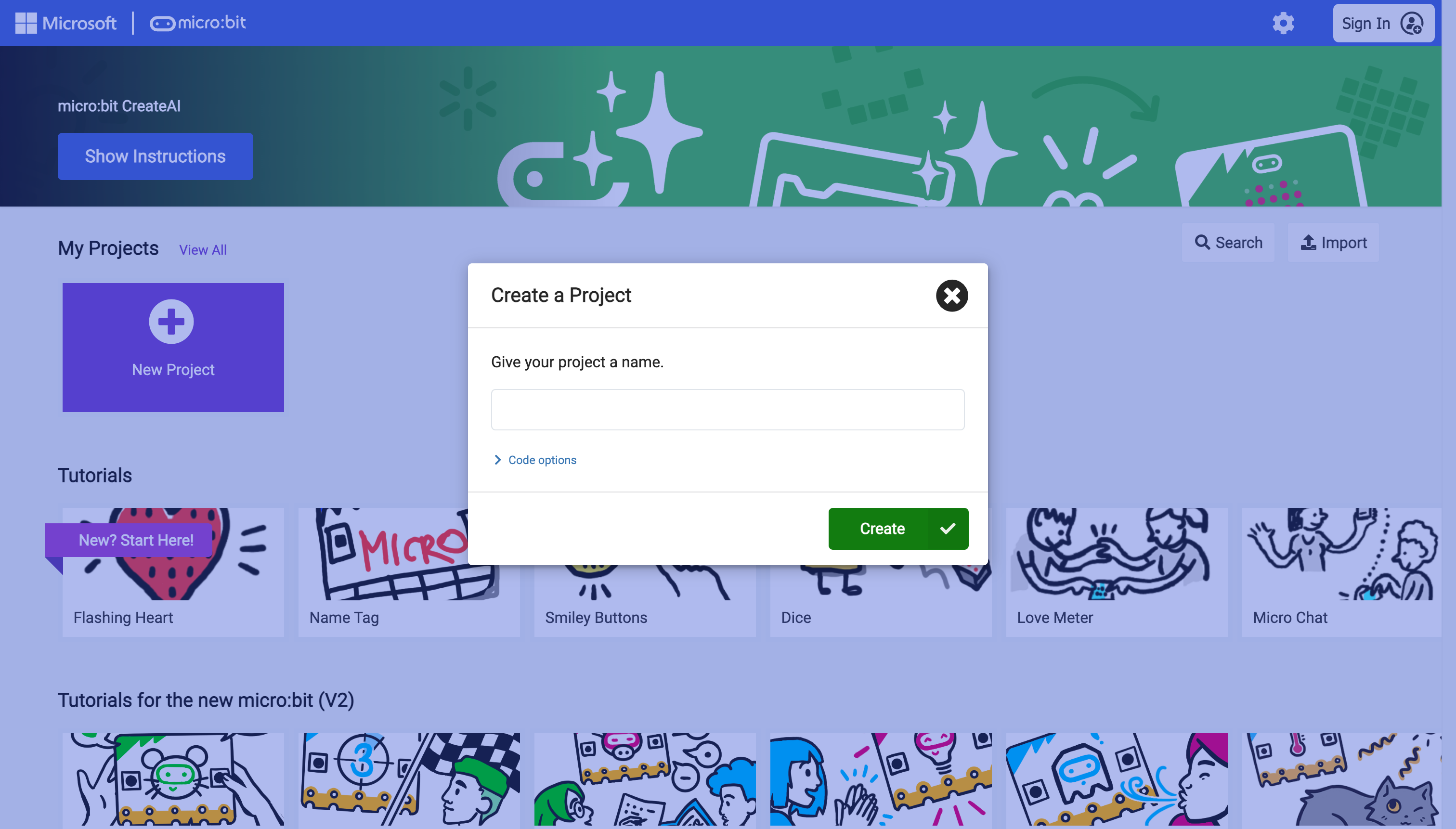 Naming a new project. Makecode saves projects by name, not by file — pick something recognizable, since there’s no folders on the web page. You can search your files.
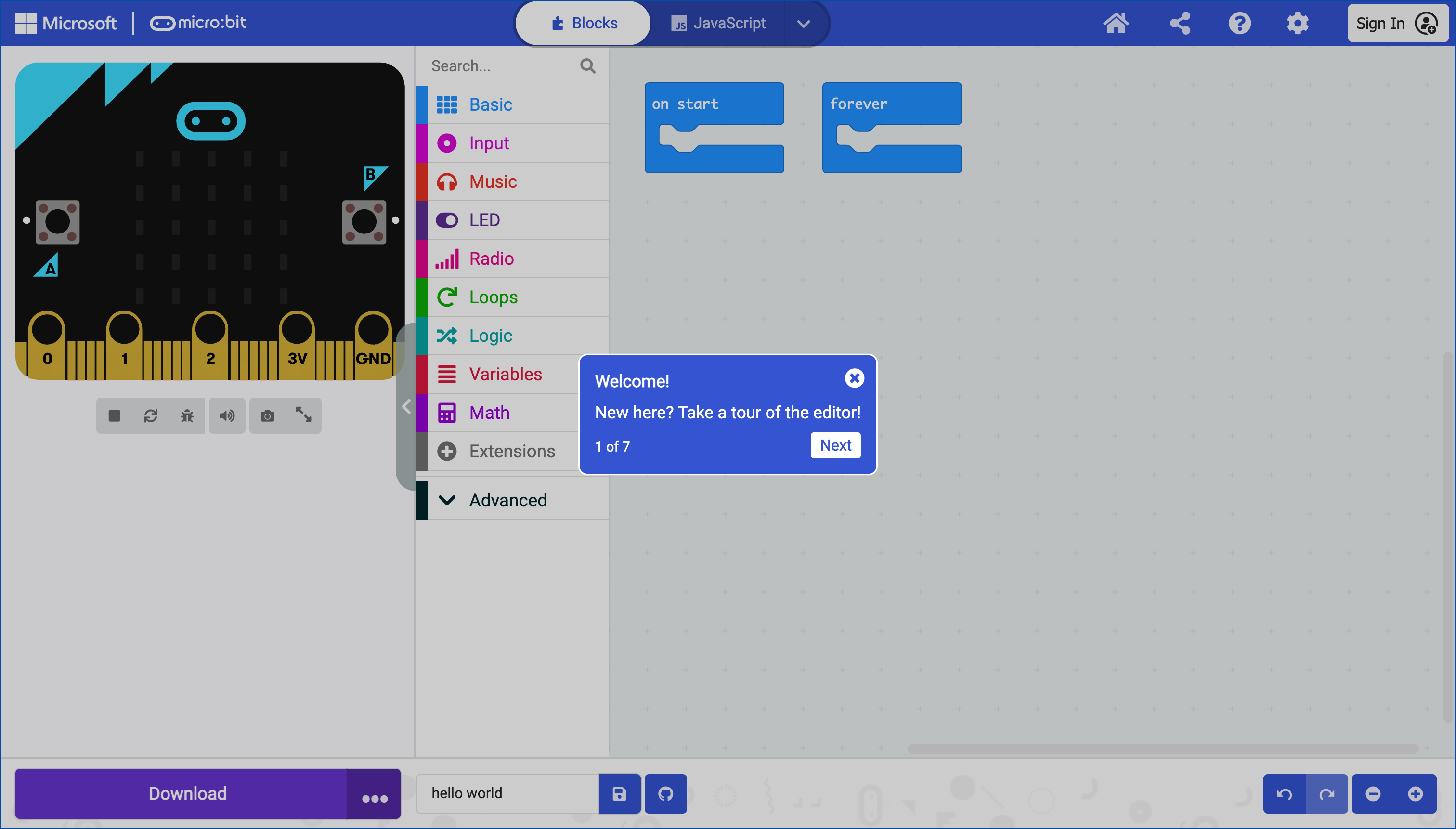 The main editor screen: a simulator of the microbit on the left, a toolbox of code blocks in the middle, and an empty workspace on the right where blocks snap together into a program. Makecode walks first-time visitors through each part, one tooltip at a time.
The bar along the bottom holds project-wide controls: a save icon and a GitHub icon (for exporting the project to your own repository) next to the project name field, and undo, redo, and zoom controls at the far right.
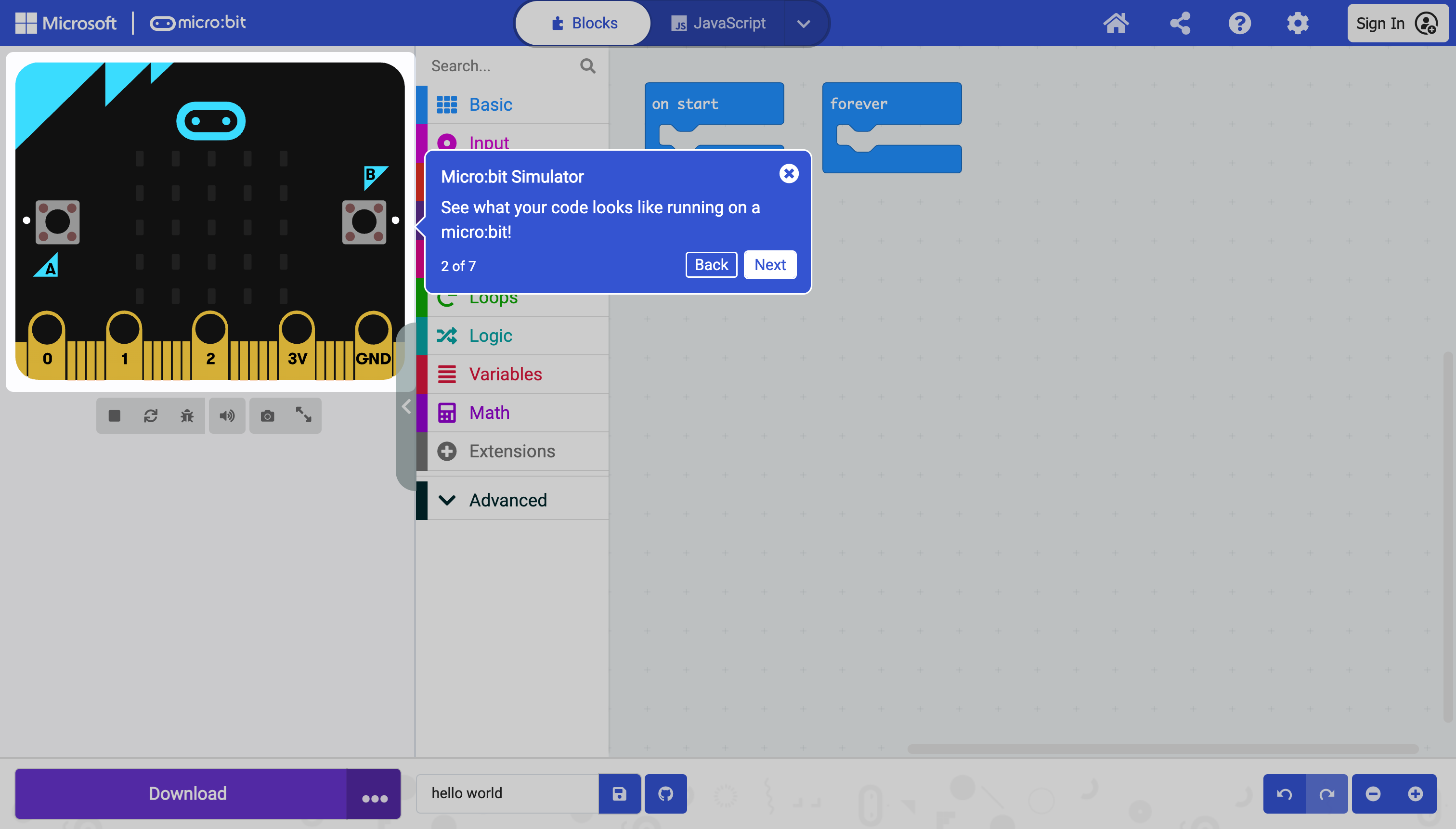 The simulator — a working model of the microbit that runs a program right in the browser. Test an idea here before it ever touches real hardware. You can click the buttons and other interactions.
The row of icons under the simulator — stop, restart, mute, screenshot, and the bug icon for stepping through code line by line — control the simulator itself, not a real board.
The gold tabs along the bottom edge of the board — labeled 0, 1, 2, 3V, and GND — are the pins. This is where alligator clips or wires connect external sensors, LEDs, or motors to the microbit; everything past this page assumes you’ll eventually be using them.
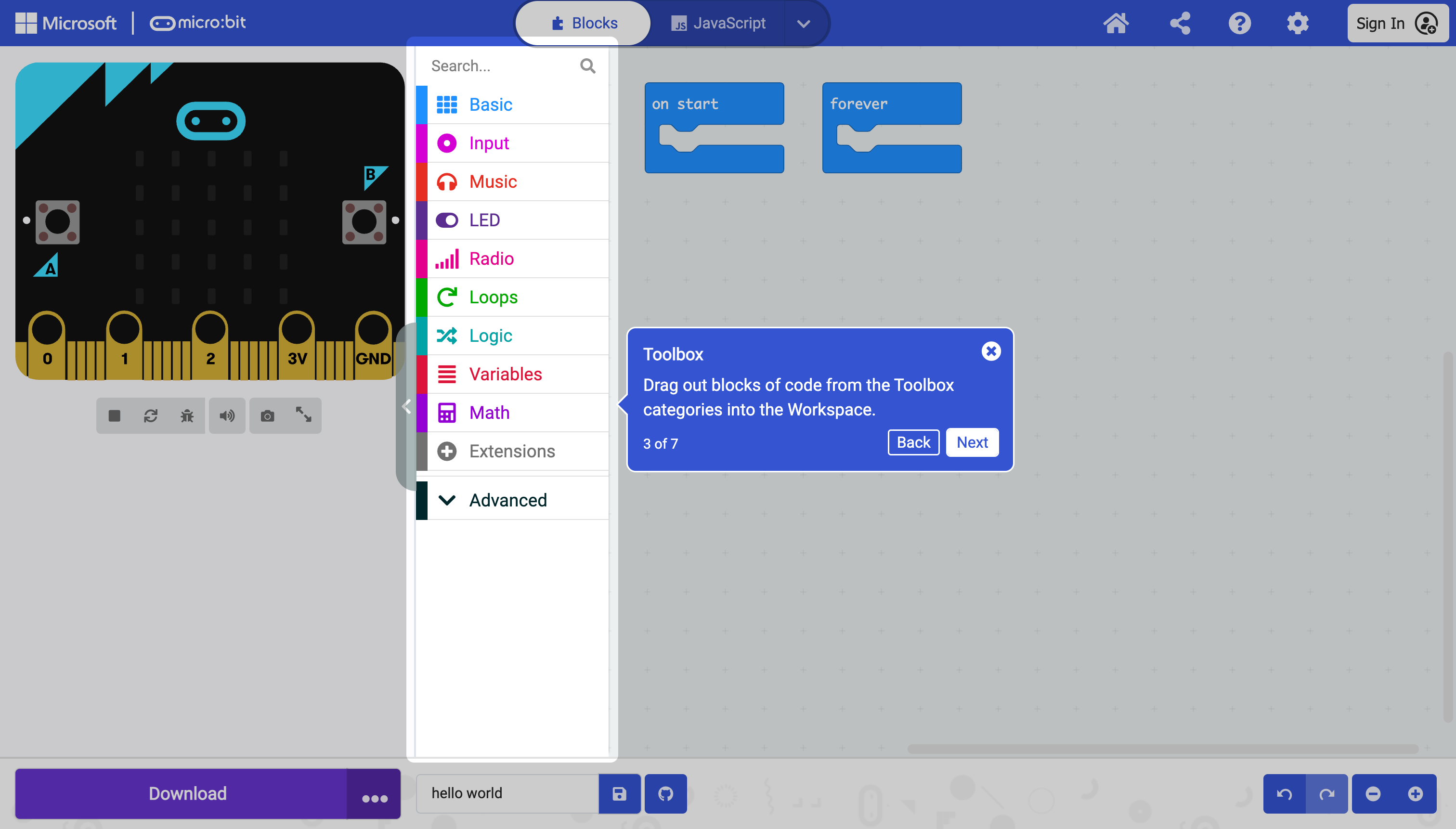 The toolbox — color-coded categories of blocks, grouped by what they control: lights, buttons, sound, radio, and so on. Drag a block out of here to use it.
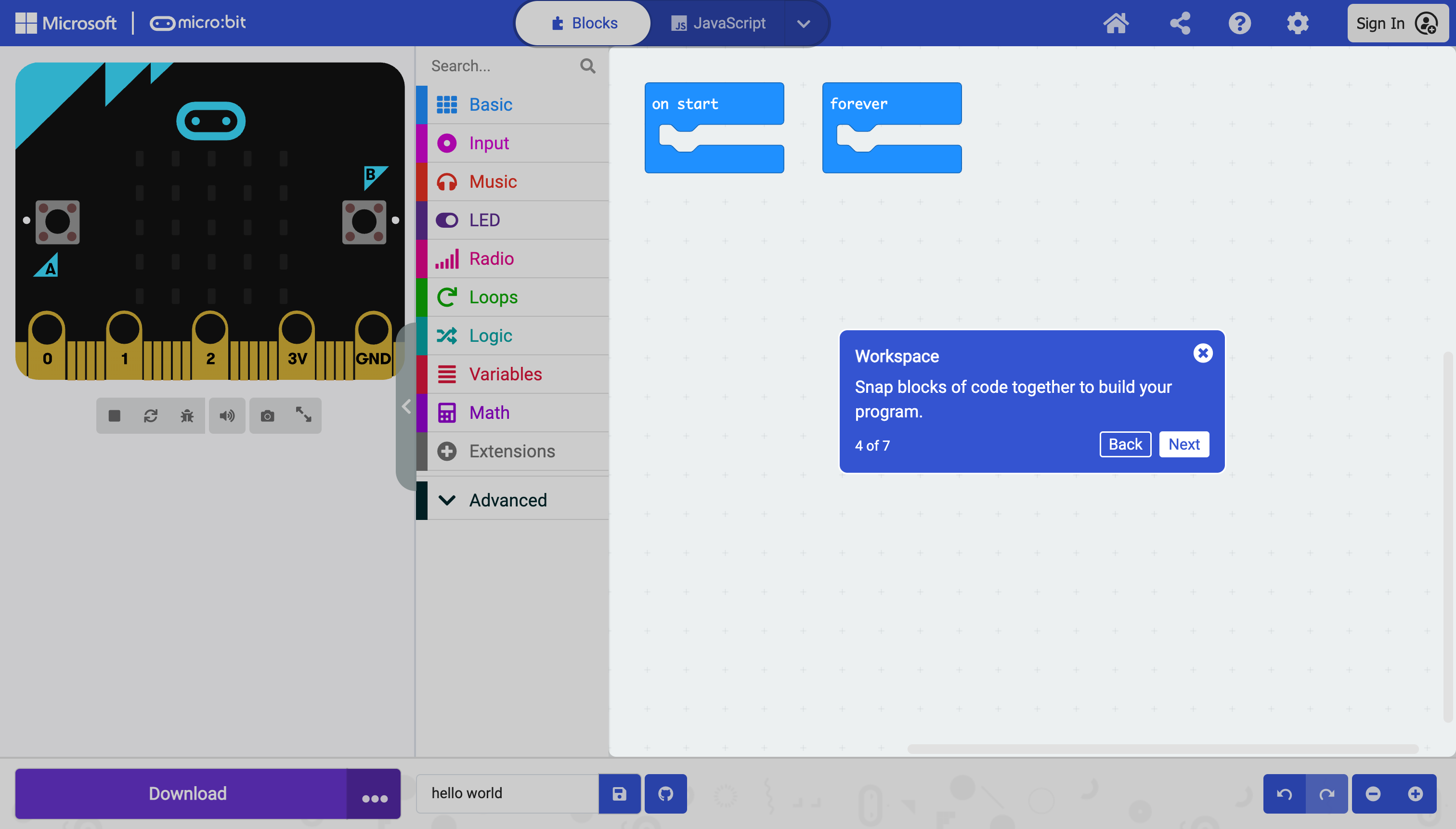 The workspace — where dragged blocks snap together into a program, the way words snap together into a sentence.
Note: I find the Blocks style unhelpful, we use JavaScript in my class, for consistency. Text based code can get help from AI tools, blocks can’t.
You can switch between code languages and makecode will translate, although code comments get messed up.
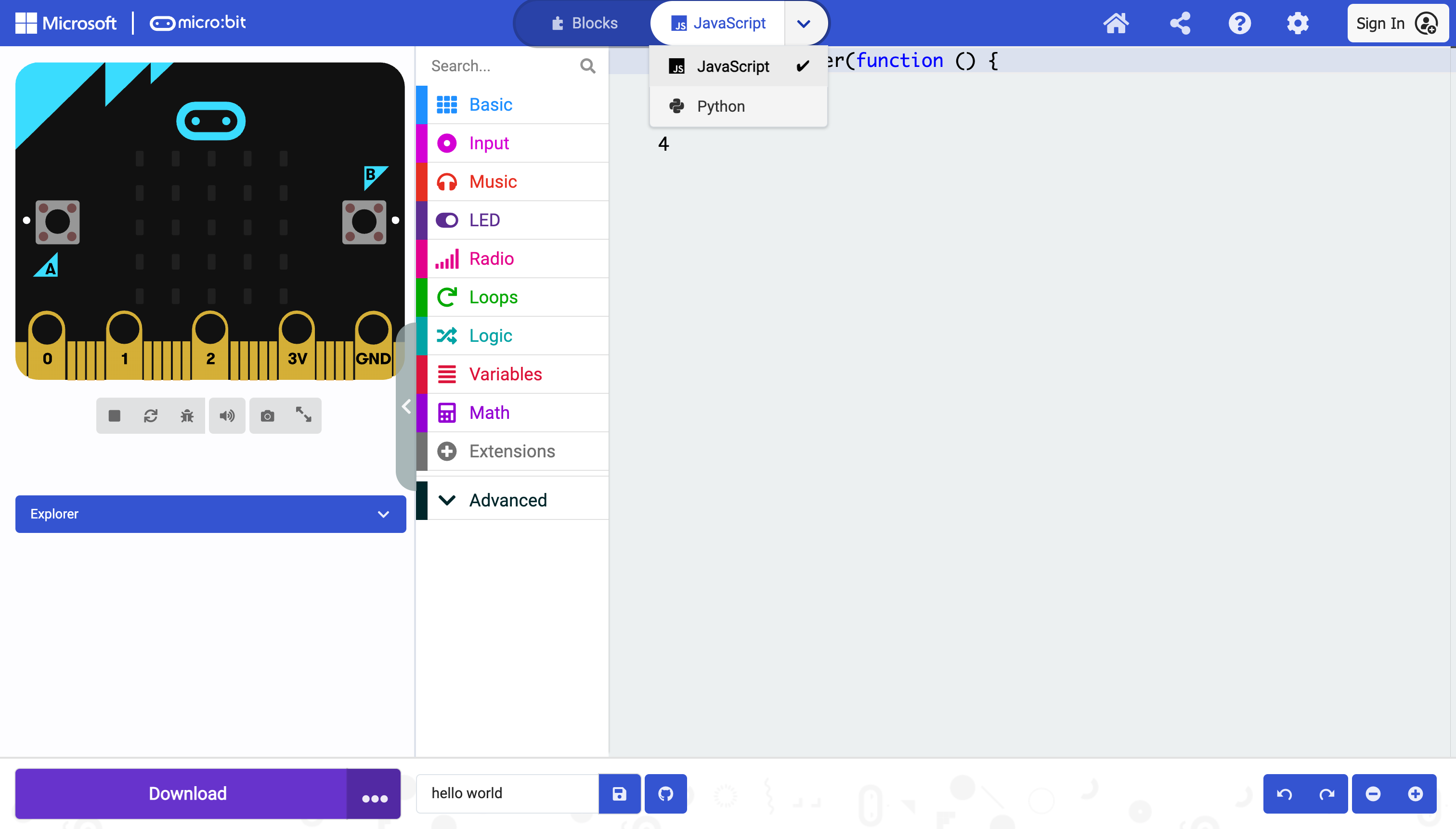 Blocks aren’t the only view. Makecode writes the equivalent JavaScript or Python behind the scenes, and switching to it is one click. Reading the text version is a quick way to see what a block is actually doing.
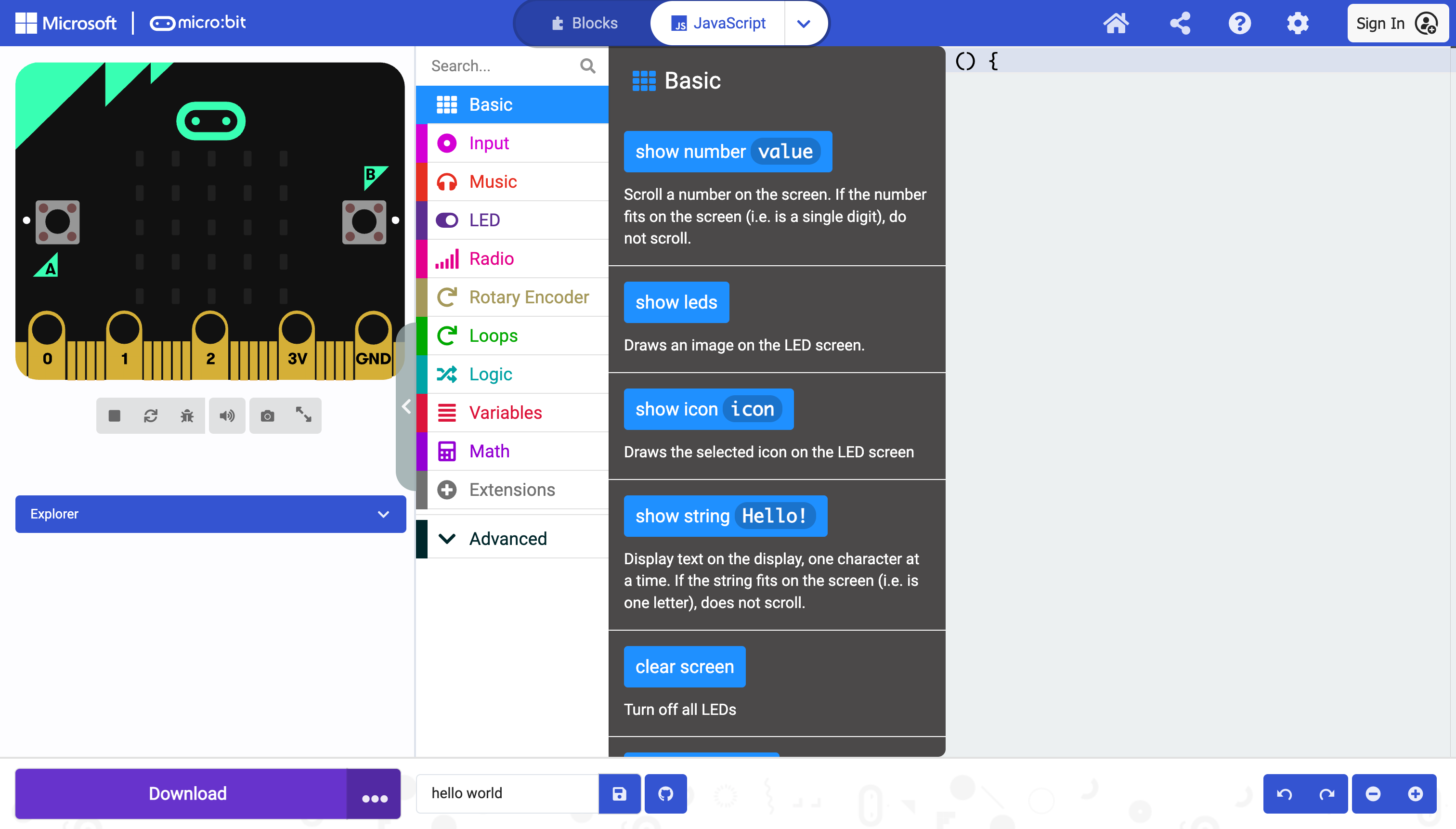 Hovering over any block in the toolbox shows a plain-English description of what it does — not just its name.
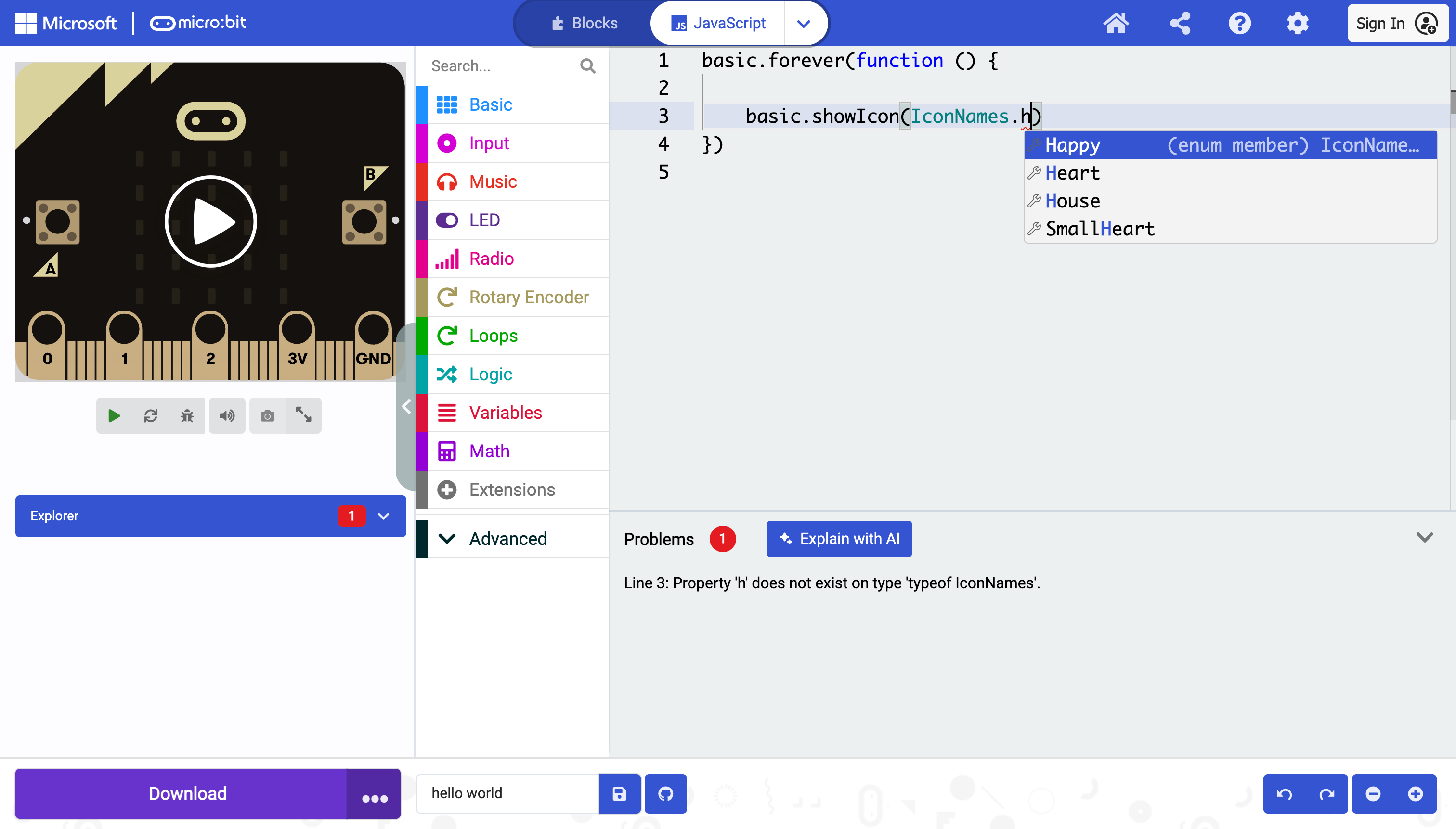 Typing code instead of dragging blocks brings ordinary code-editor help: type an icon’s first letter and a matching list pops up, with an error underlined until a valid choice is picked.
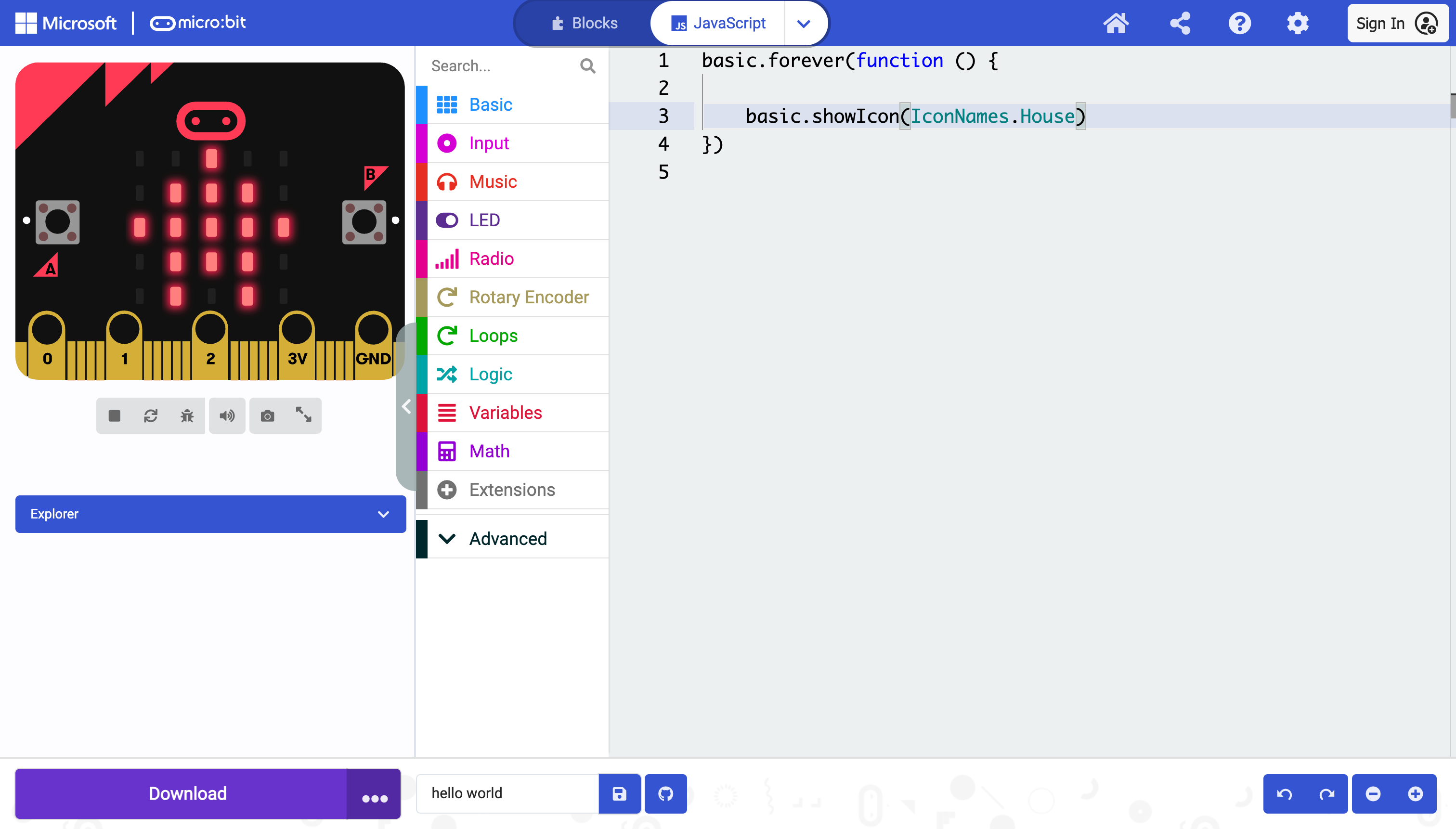 The simulator updates the instant code changes, blocks or text — no download needed to preview an animation like this one.
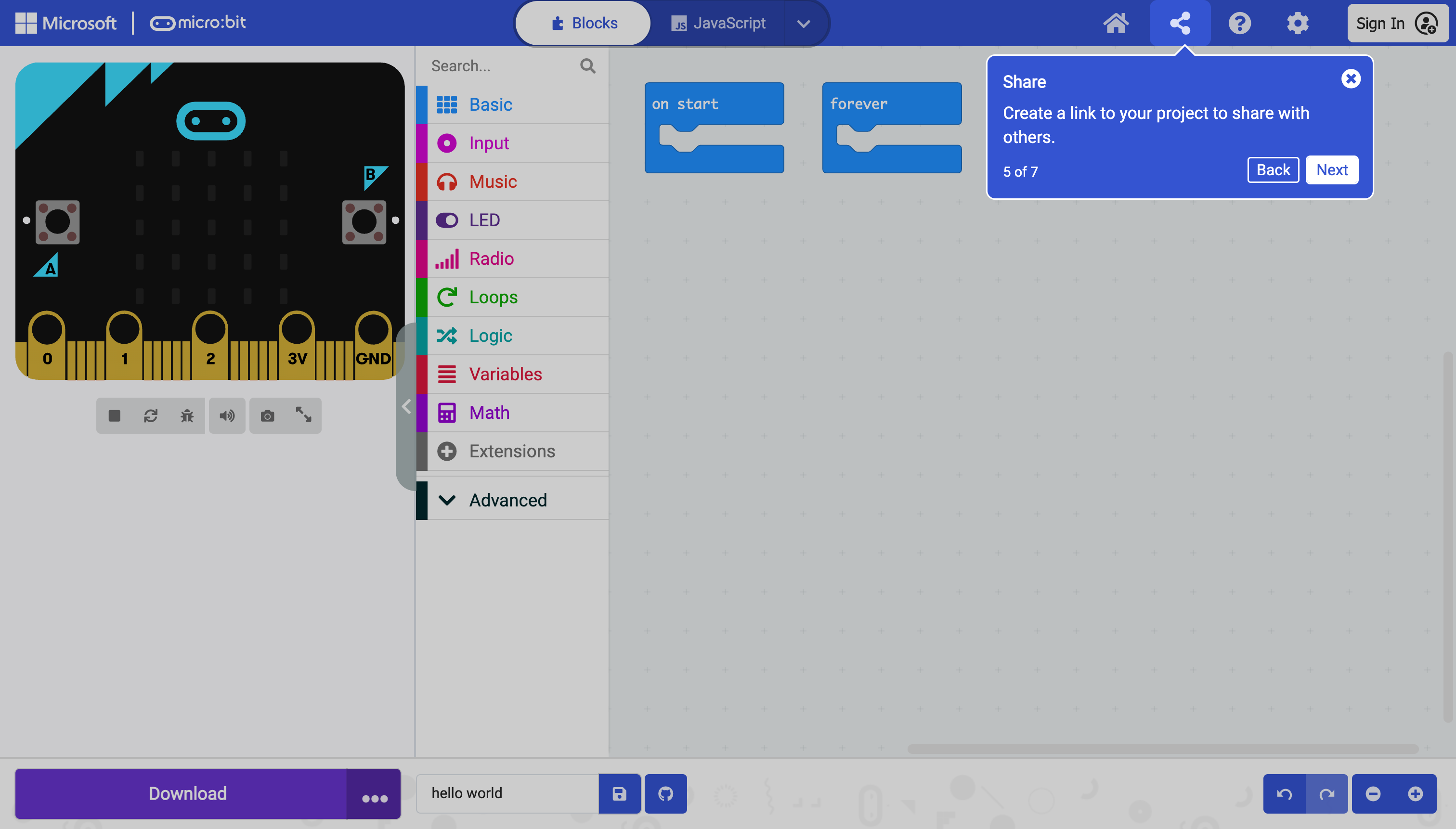 Share turns a project into a link and a QR code that anyone can open and view — no account needed on their end.
NOTE if someone (including you) opens a share link and edits, you are making a COPY, which does not update the original URL. Making many many copies is common. The “safe” solution is to login and save the program with a distinct name. When returning to makecode, login and search for that special name.
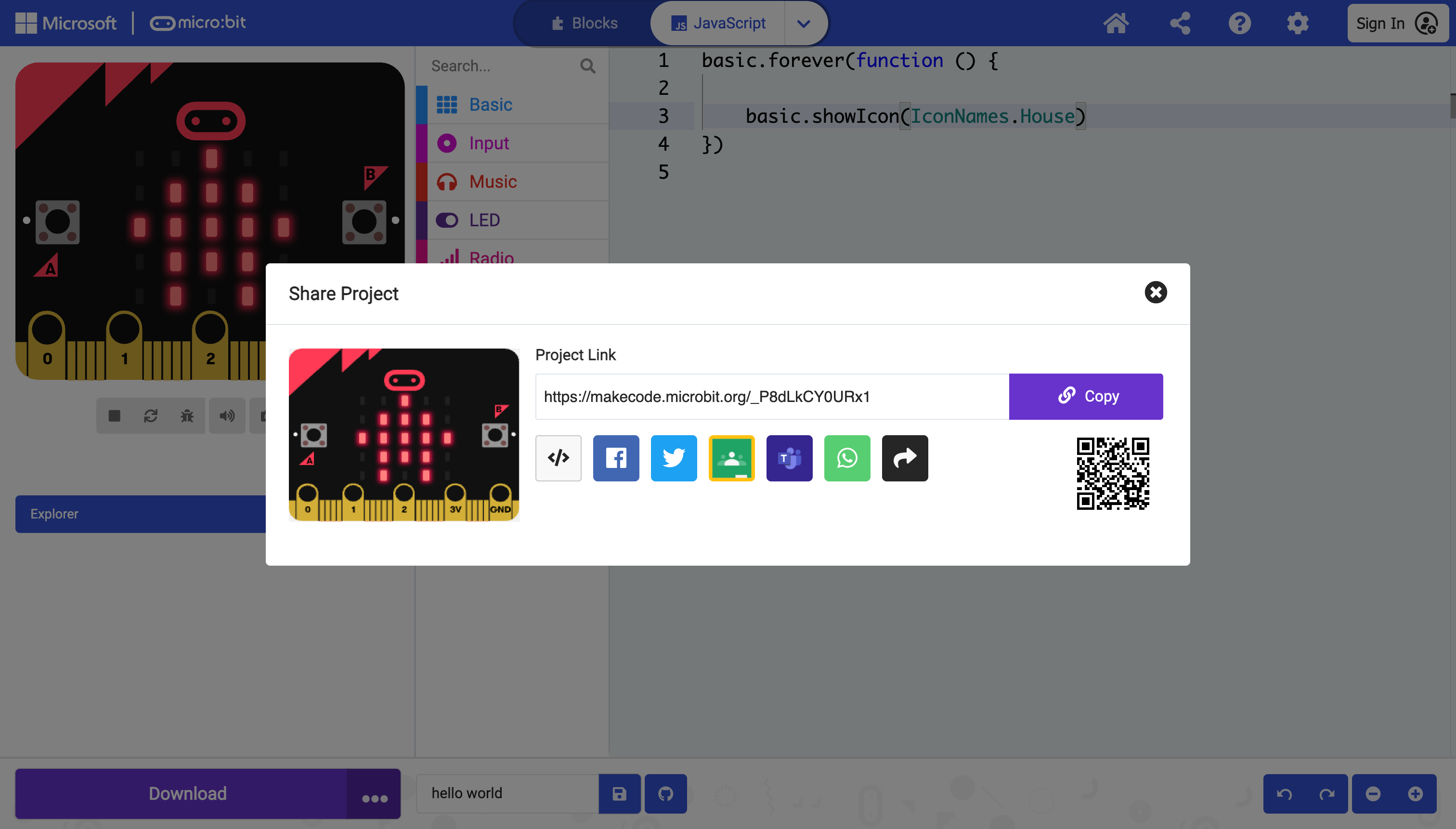 Sharing produces a permanent link and a scannable QR code — a fast way to hand someone a working prototype without emailing files back and forth.
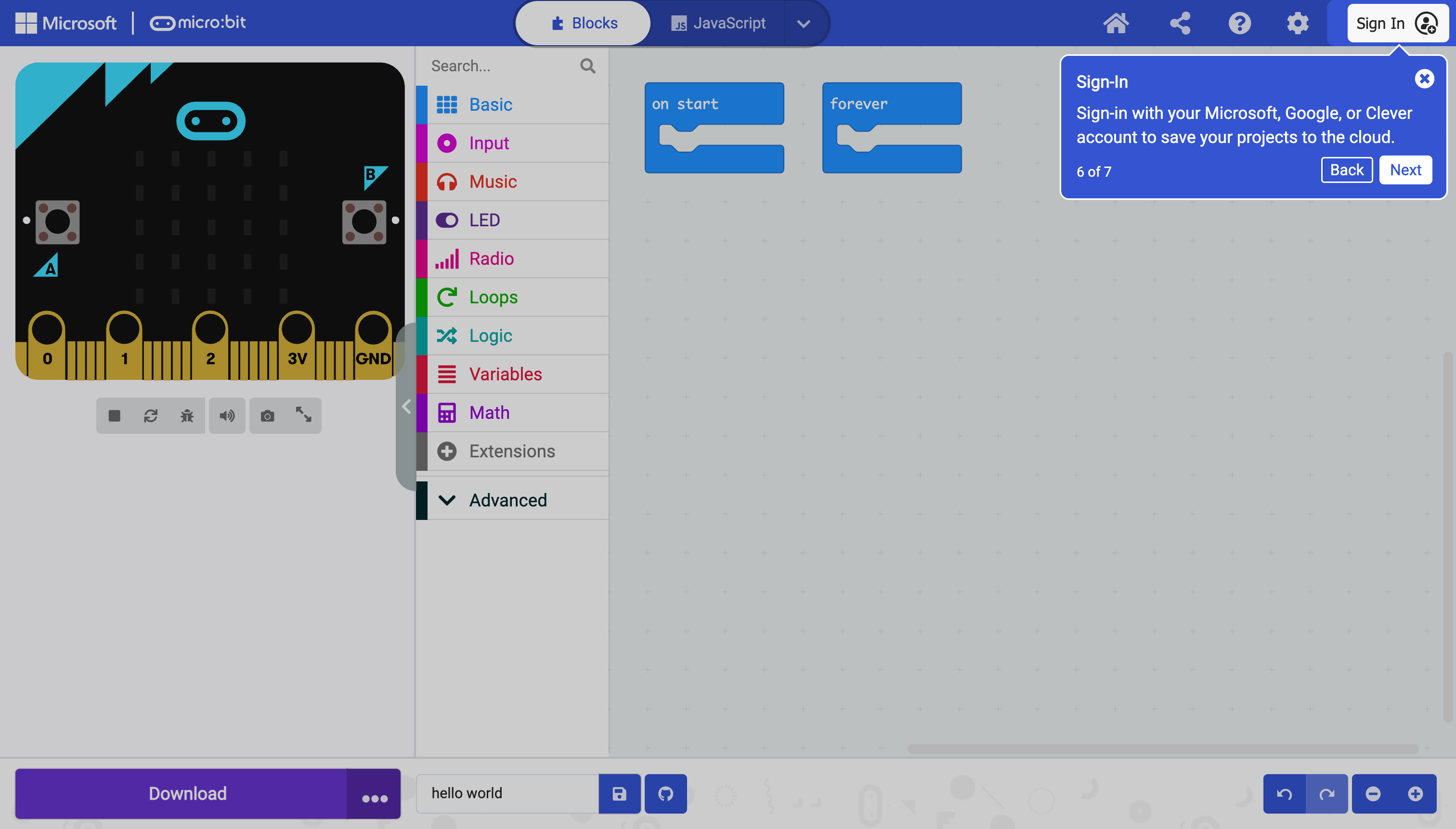 Signing in is optional, but HIGHLY recommended. It saves projects to the cloud under a Microsoft or Google account.
The gear icon next to it opens project settings — including managing installed extensions and turning on high-contrast or greenscreen display modes.
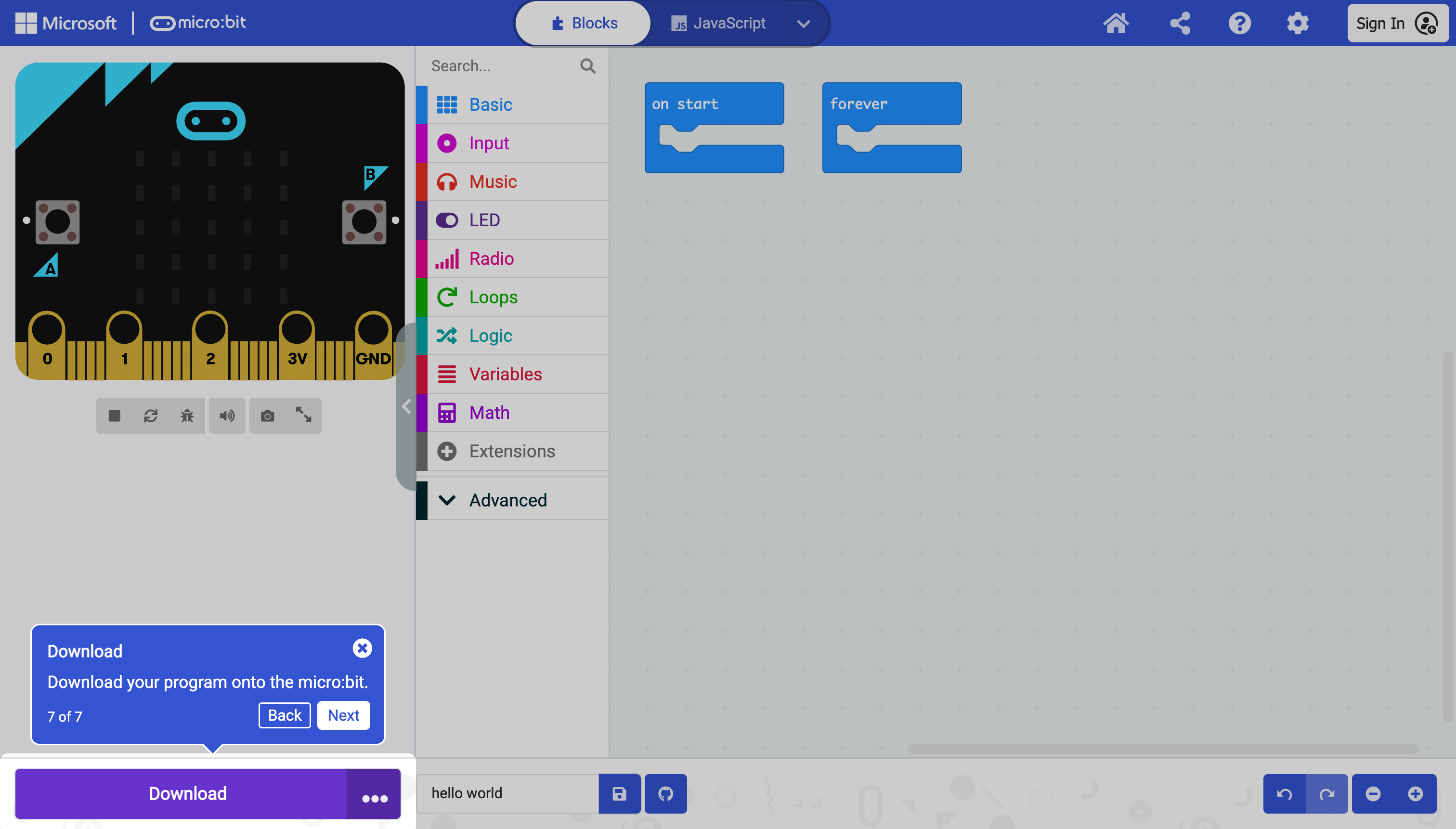 Download sends the finished program to an actual microbit — either as a file to drag onto it, or, in Chrome, a direct wireless-feeling transfer (more on that below).
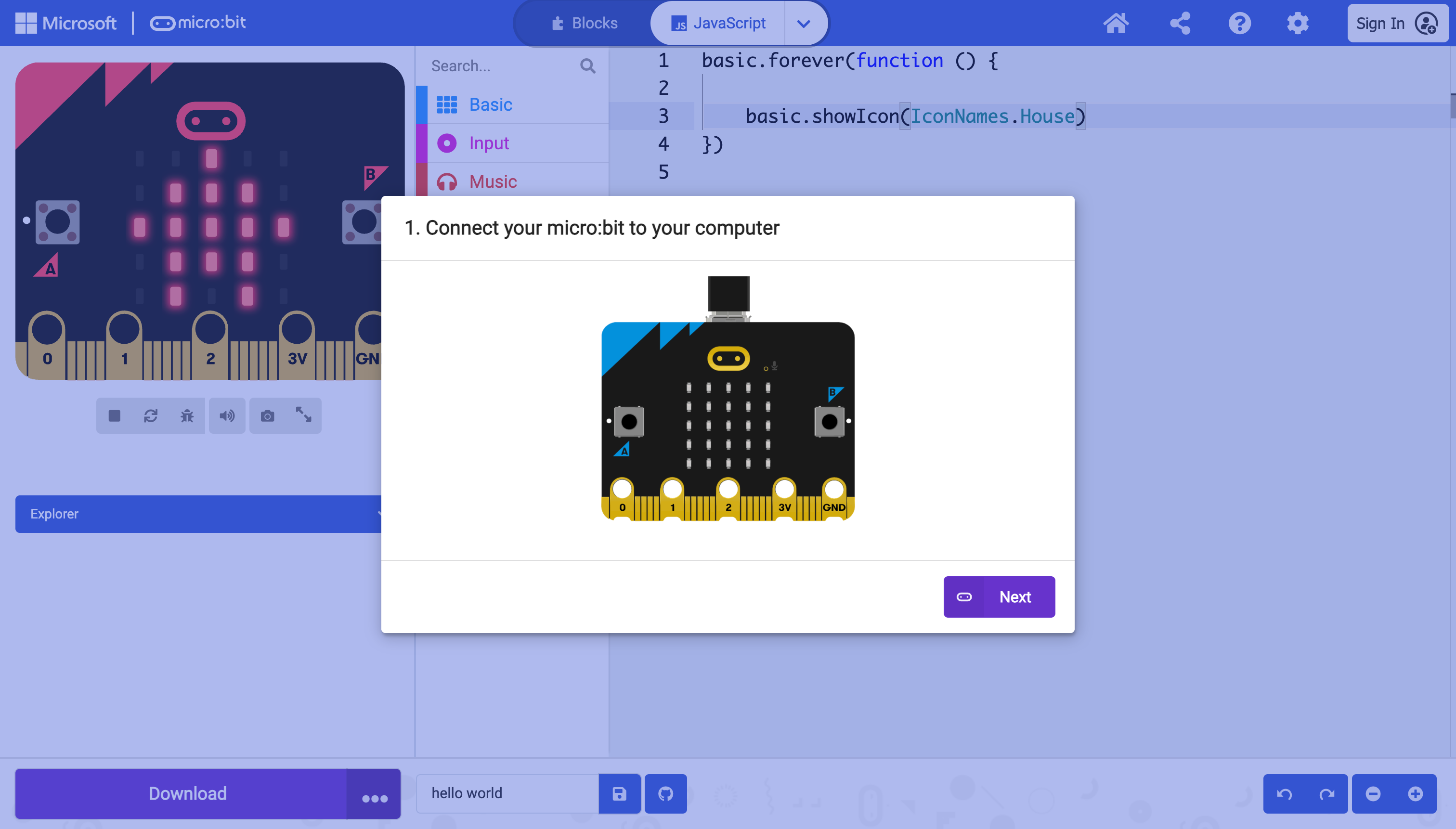 Downloading to real hardware, step one: plug the microbit into the computer with a USB cable.
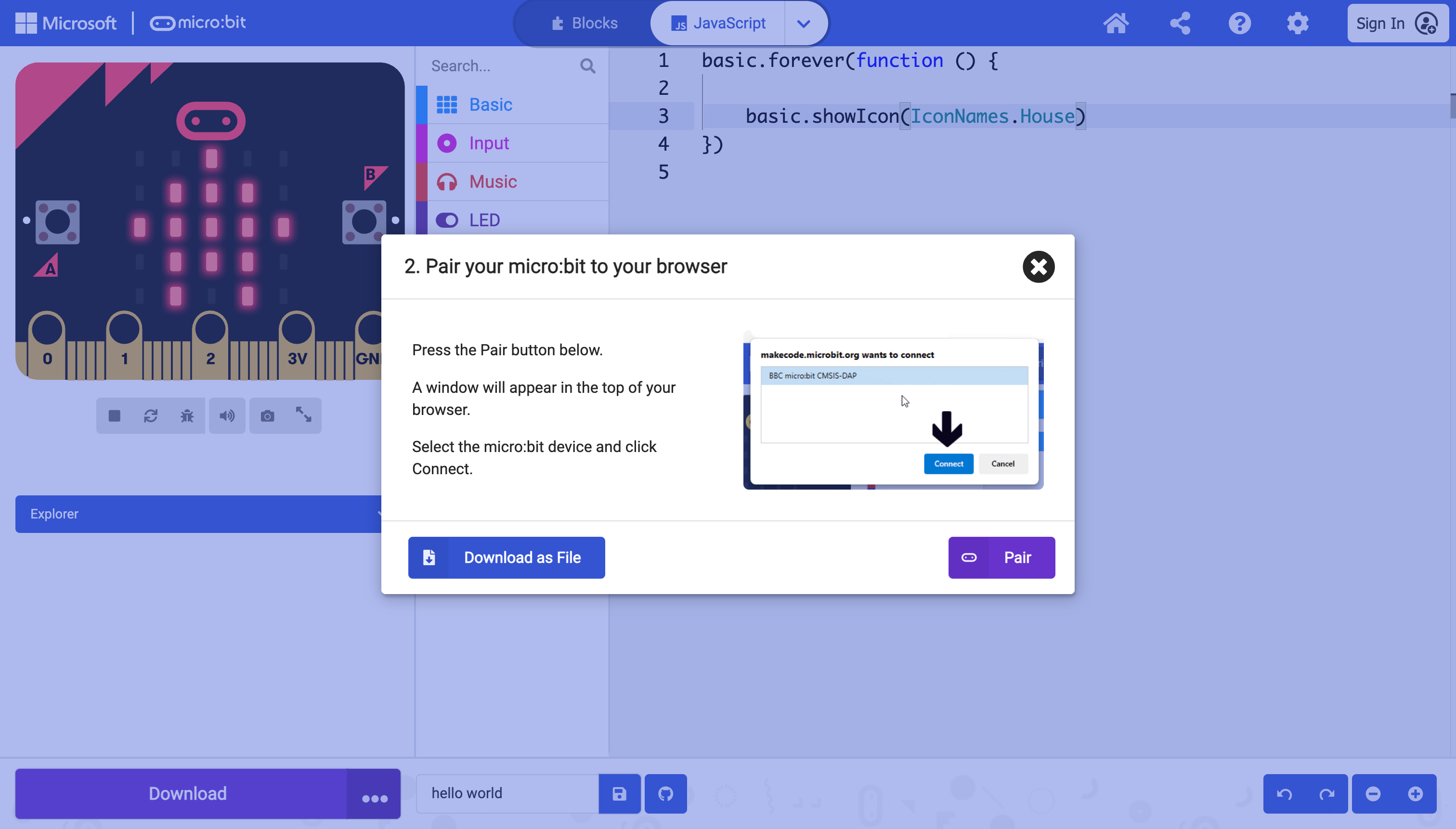 Step two: pair the board with the browser, using WebUSB — a way for a browser to talk directly to a connected device without installing extra software.
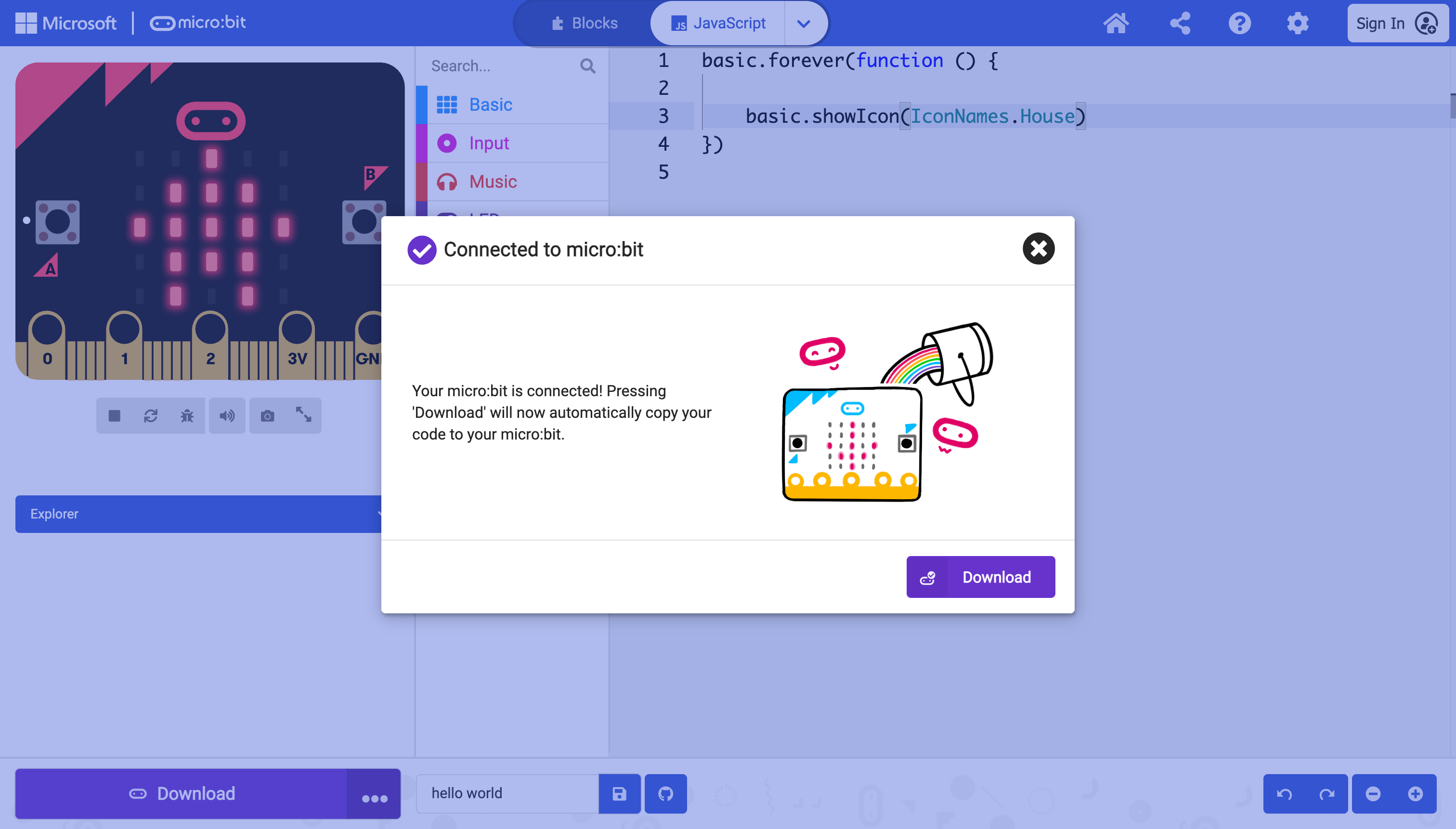 Once paired, the browser remembers the board. From here, Download sends code straight to it — no more dragging files by hand.
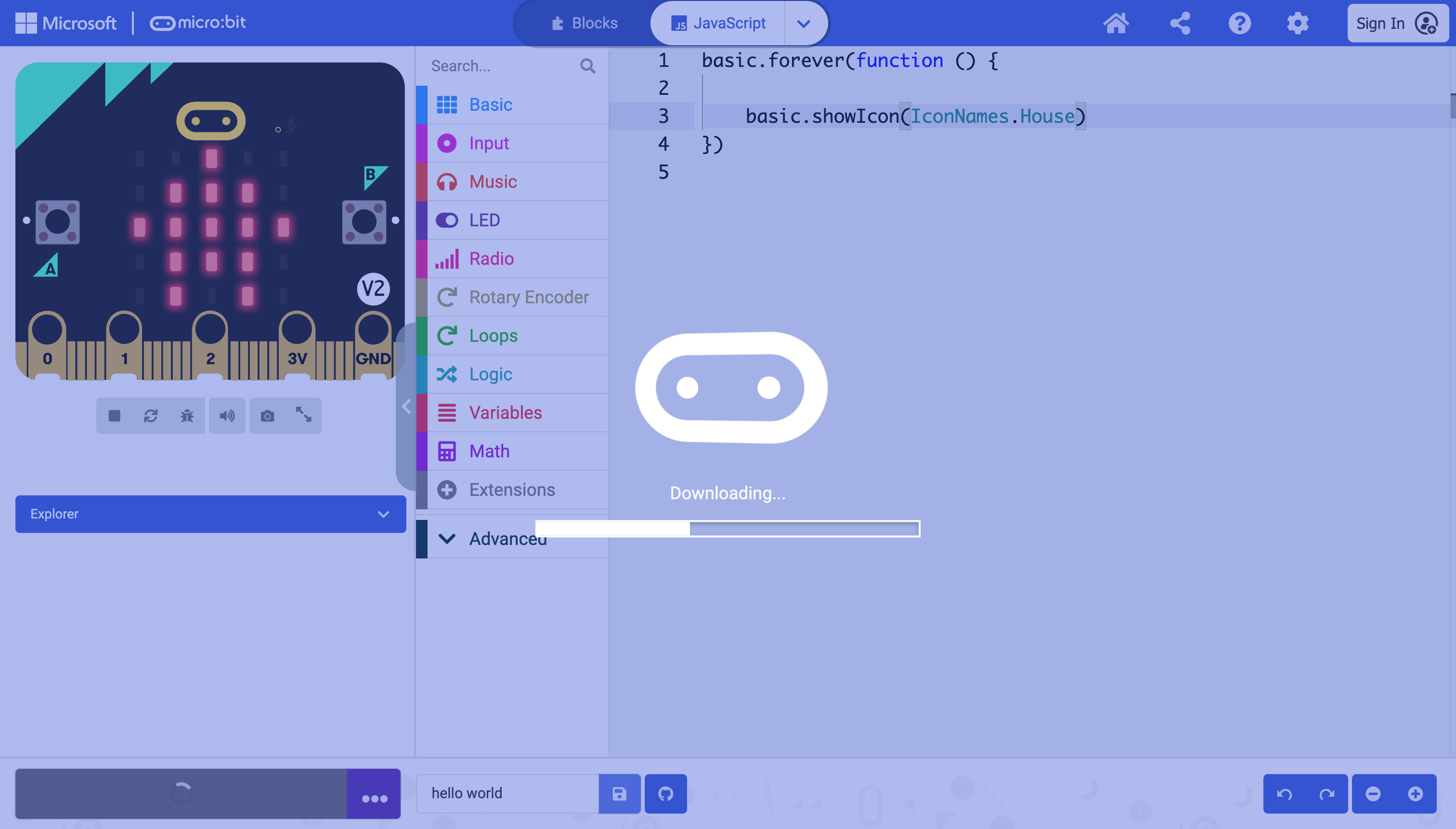 The microbit shows this animation while a new program transfers over.
The “V2” badge on the simulator marks which hardware version it’s emulating. V2 boards — the ones sold since 2020 — add a speaker and a microphone and a few extra pins; some tutorials and extensions require V2 specifically, so it’s worth checking before you buy.
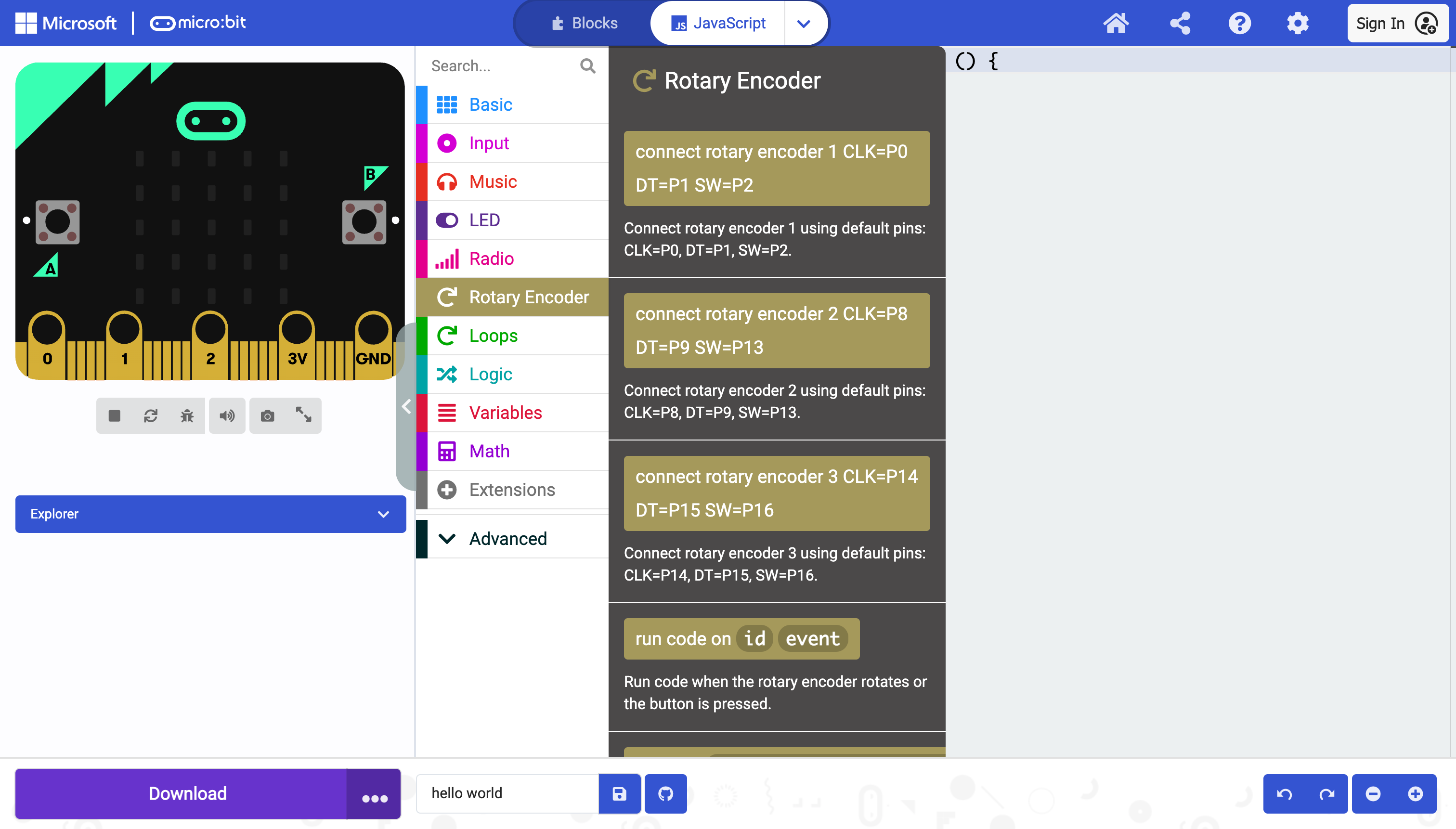 Once installed, an extension’s blocks show up as a new toolbox category — Rotary Encoder, here — ready to drag into a program like any built-in block.
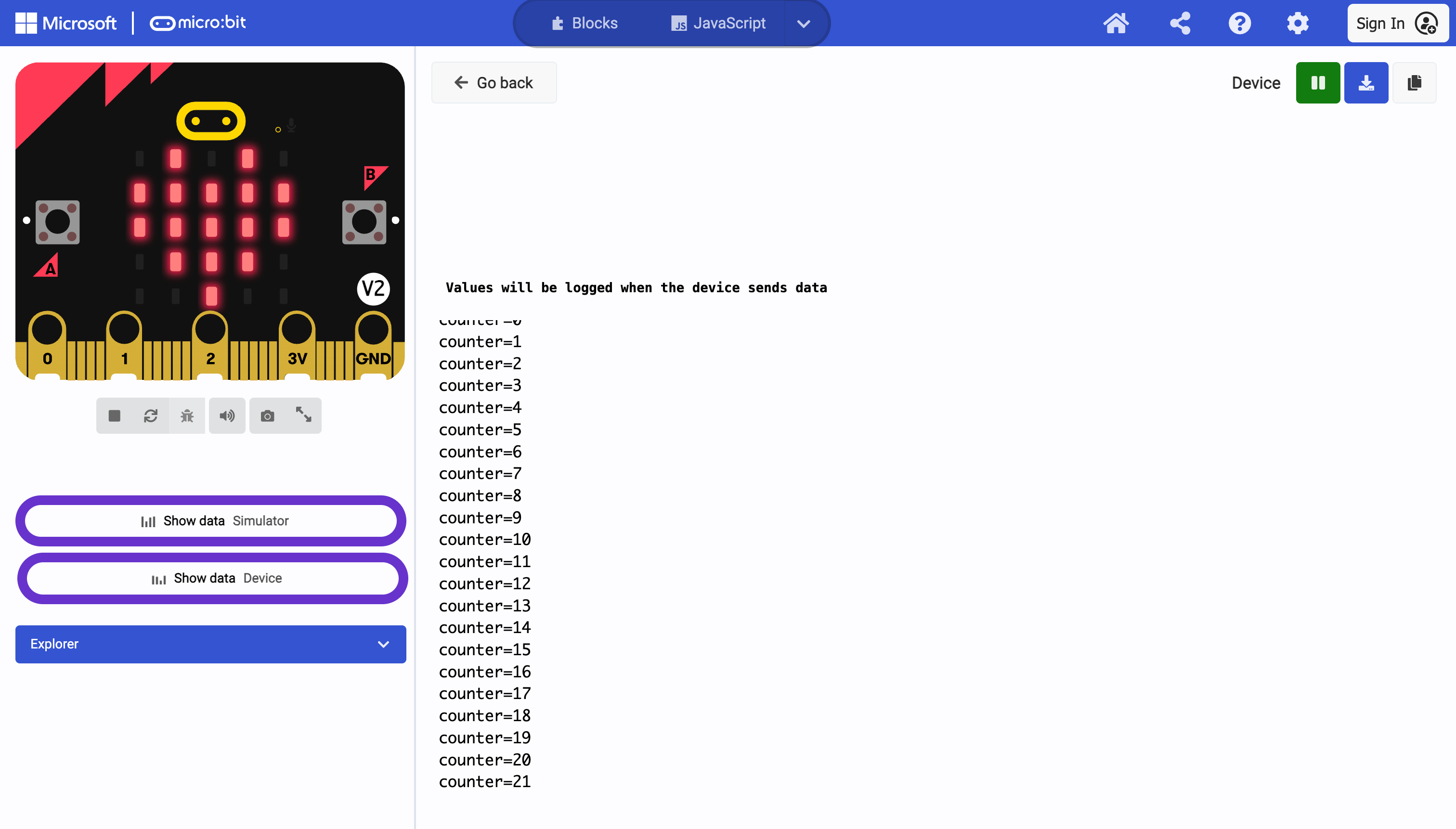 Serial output — a live, scrolling text log the microbit sends back over the same USB cable — lets you watch a variable or sensor value change while a program runs on real hardware, not just in the simulator.
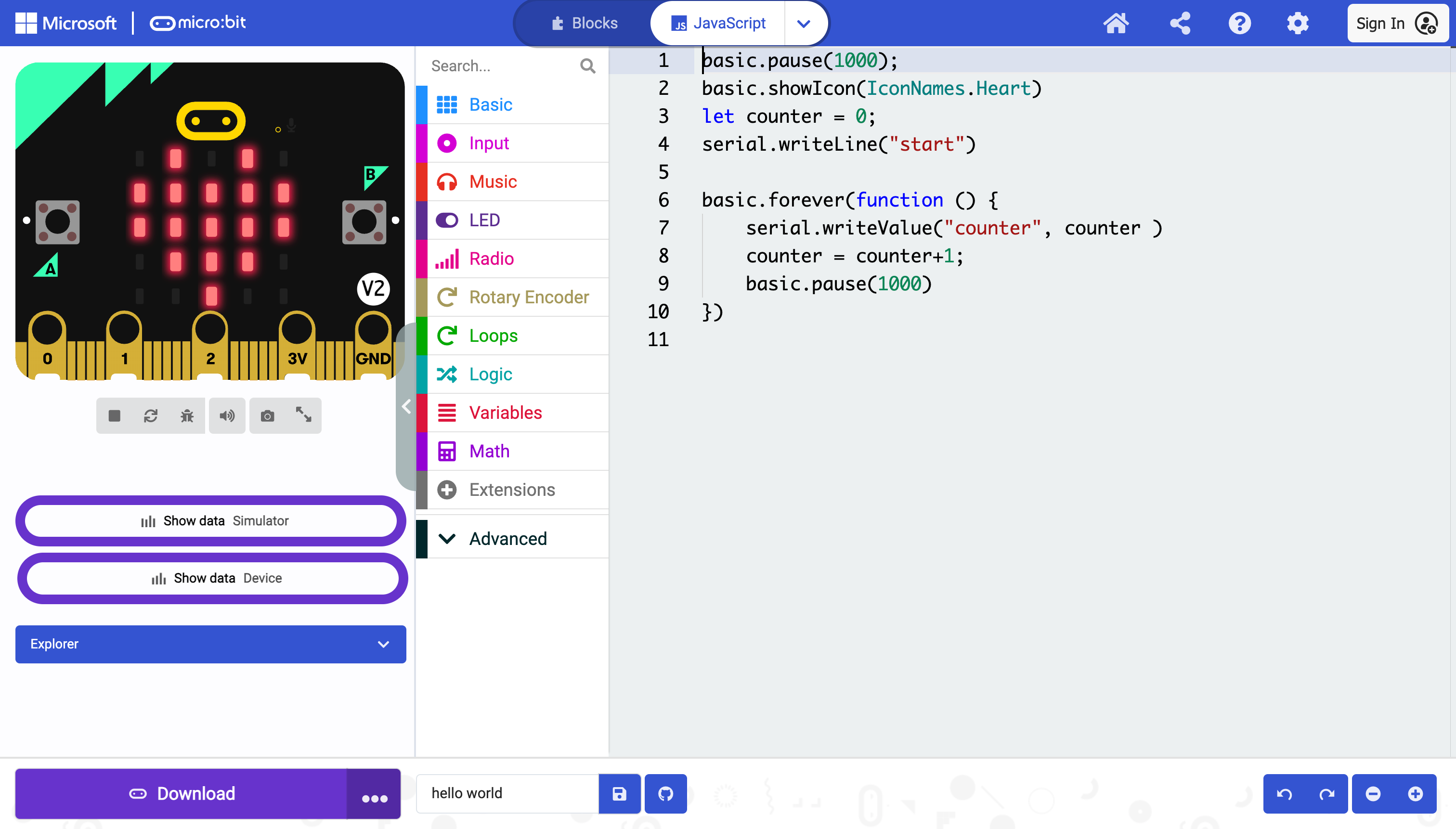 The code producing that log.
 serial.writeValue() labels each value sent; this program sends one line roughly every second.
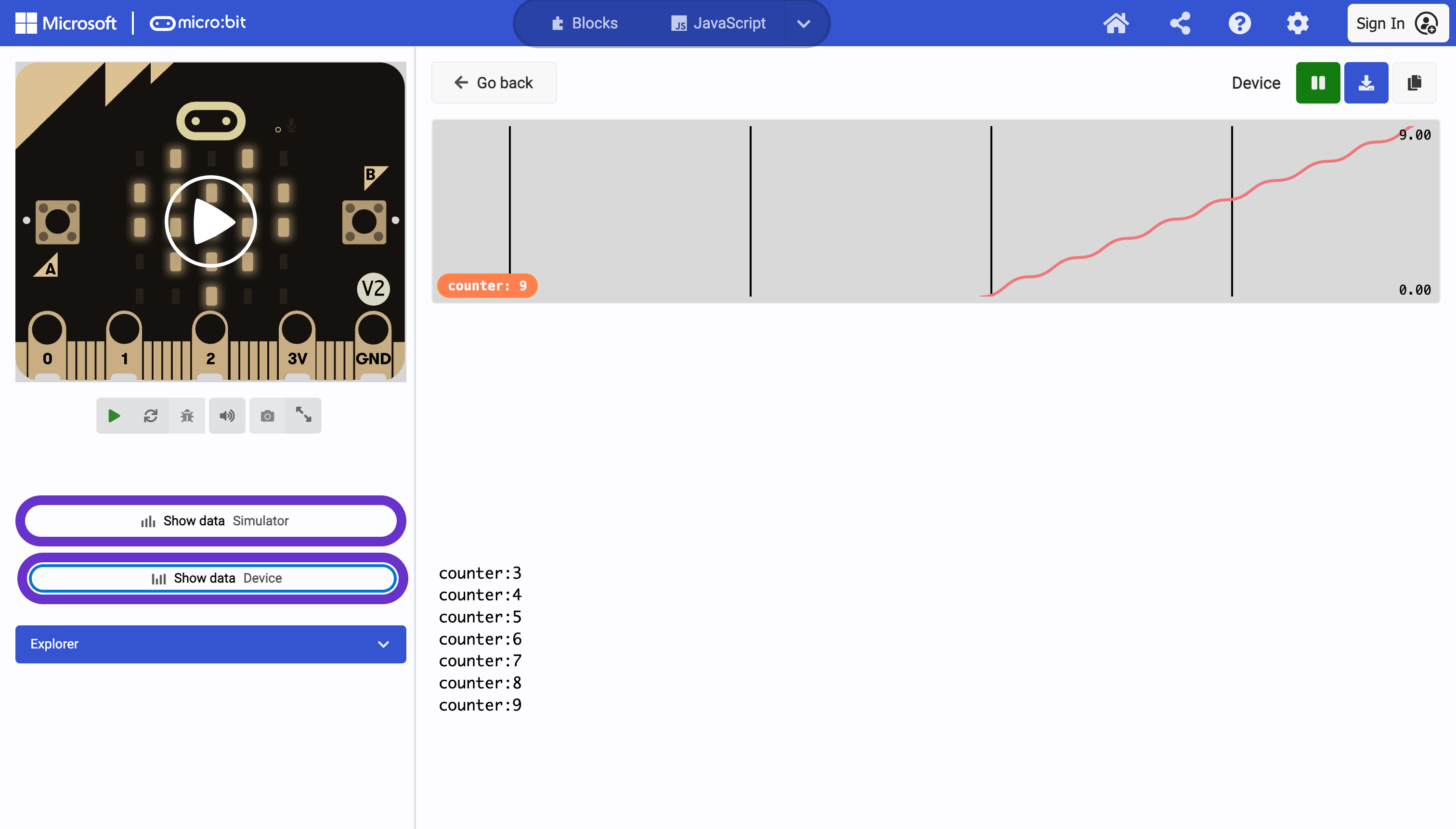 Makecode can also plot serial data as a live line chart instead of a scrolling list — useful for spotting a trend, like a sensor reading climbing over time.
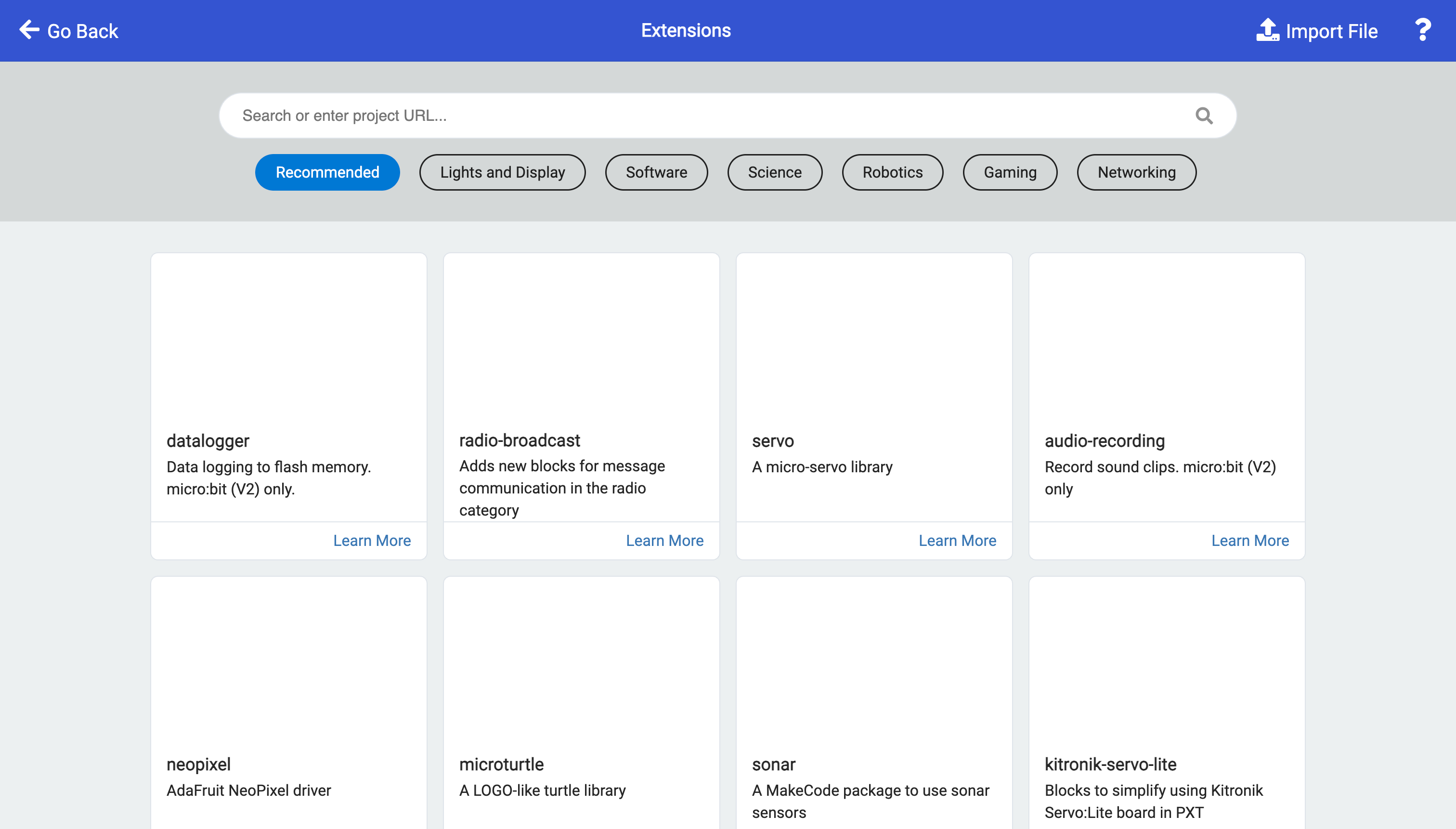 Extensions add whole new categories of blocks for specific hardware or techniques — sensors, motors, other add-on boards — that aren’t part of the microbit’s built-in toolbox.
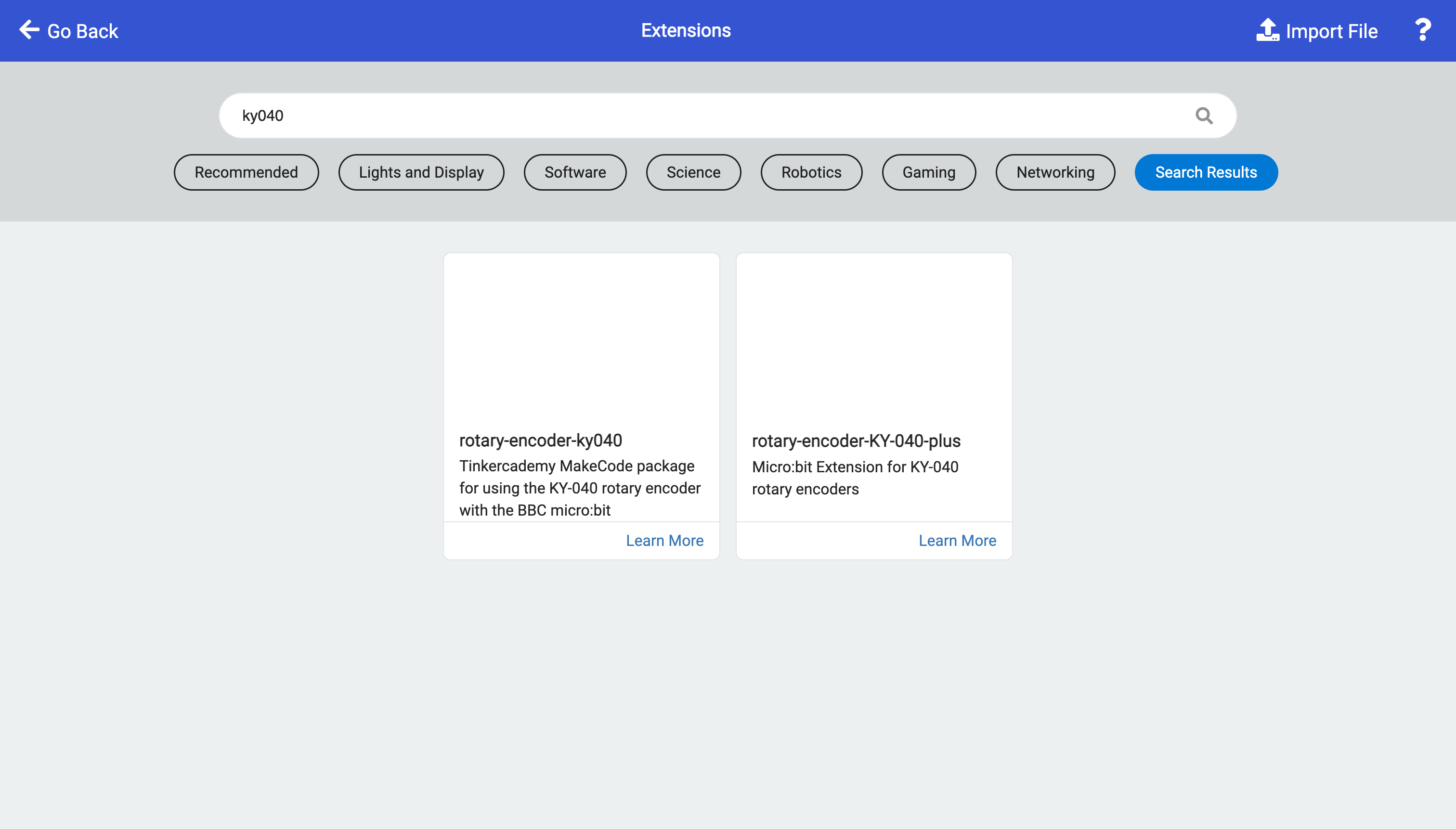 Searching extensions by name — here, a rotary encoder, a knob-style input for turning a dial into a number — surfaces community-built packages that match. These extensions are approved so should work!
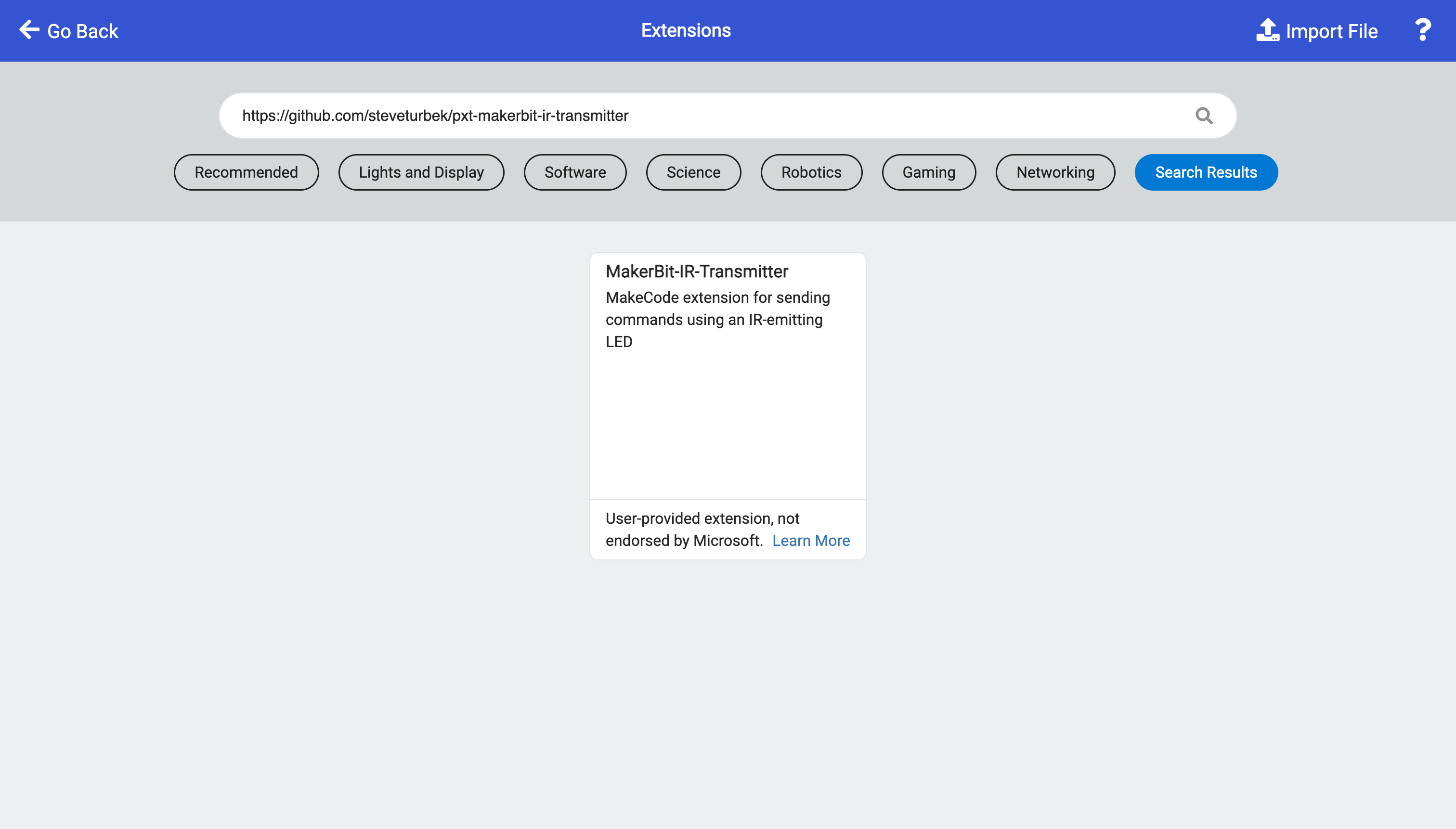 Extensions can also be installed straight from a GitHub repository link, including one written by the reader — this result points to the author’s own infrared-transmitter extension.
Extensions found through search, like the rotary encoder above, have been reviewed and approved by Microsoft. Anything installed by pasting a GitHub link, like this one, hasn’t been — Makecode flags it as “not endorsed by Microsoft,” and it’s on you to trust the source. That’s also how you test your own extension before submitting it for approval and wider search visibility.